Free Script Scroller. Browser-Based. No Signup
Script Scroller
Paste your script and it scrolls up the screen at a speed you set, so your hands stay off the keyboard and your eyes stay on the camera. Free, browser-based, and there is nothing to install.
Free. No signup. Your script loads straight into the teleprompter.
What a Script Scroller Actually Does
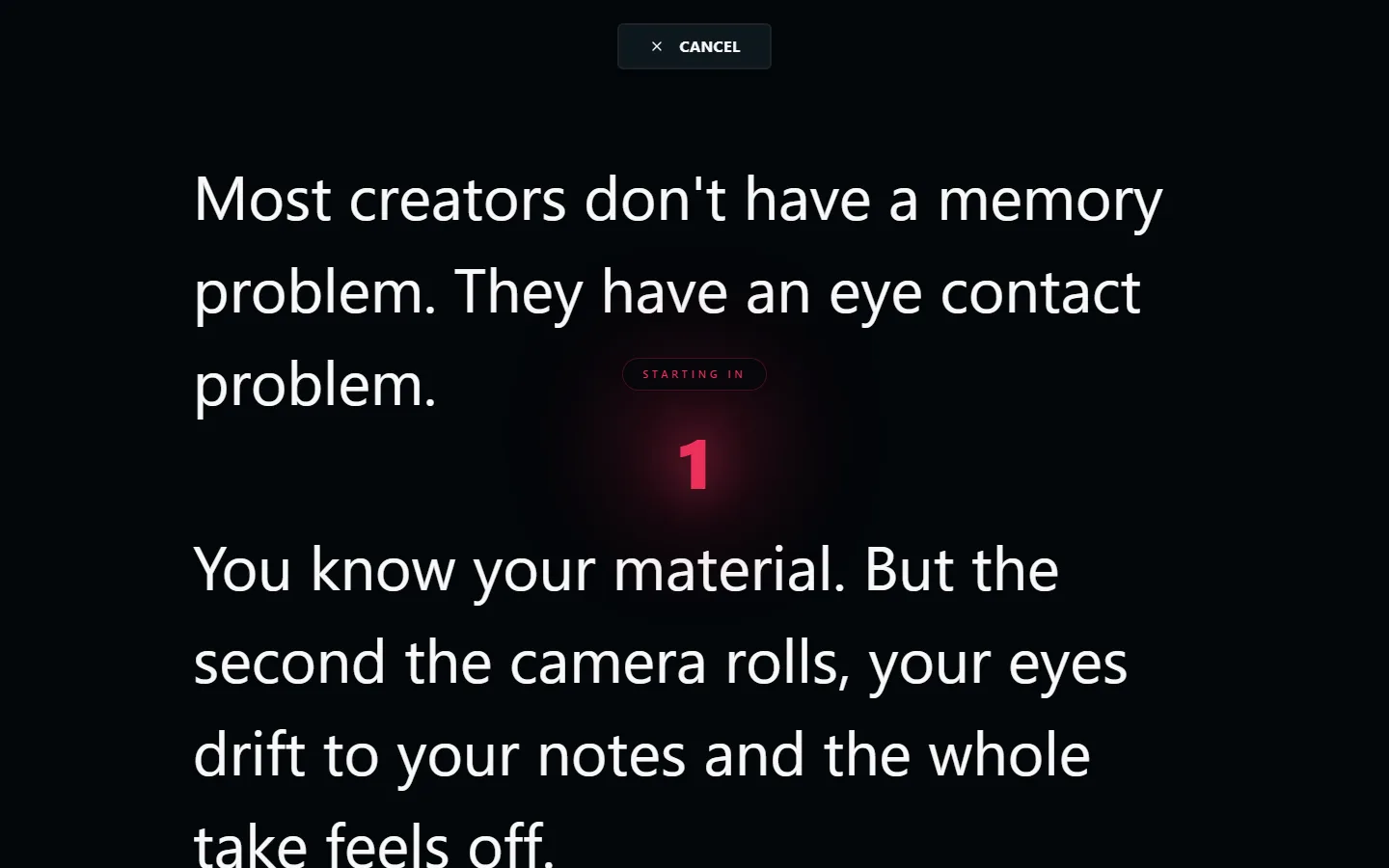
A script scroller takes a block of text and moves it up the screen at a constant pace. That is the whole job. You are not reaching for a trackpad every few seconds, you are not losing your place after a stumble, and you are not memorizing anything.
People search for this by a dozen different names. Scrolling script, script scroll, rolling script, moving script, on-screen script, script player, transcript scroller. They all describe the same tool. Some people call it a teleprompter, which is the same thing with a broadcast history attached to the word.
The reason it works is pacing. When text moves at a fixed speed, you speak at a fixed speed. That evens out the rushed opening and the trailing-off ending that most unscripted takes have, and it makes the edit shorter because you stop and restart less.
Getting the Scroll Speed Right
Conversational speech on camera lands around 130 to 150 words per minute. News delivery is slower, near 120. An energetic product video can push past 170 and still be understood. Your own comfortable pace is somewhere in there and the only way to find it is to read a paragraph out loud and adjust.
The mistake almost everyone makes on the first try is setting the speed too fast. Fast scrolling makes you chase the text, and chasing shows up in your voice as clipped words and shallow breaths. If you find yourself speeding up to keep the line in view, slow the scroll down rather than talking faster.
Long sentences and technical terms need more room than they look like they need. If a section has a product name, a URL, or a number in it, expect to slow down for that stretch. You can change speed mid-read without stopping the scroll.
How to Scroll a Script on Screen
Paste the text you want to scroll
A script, a transcript, bullet notes, anything. There is no formatting to learn and no file to import.
Set the scroll speed
Drag the speed slider and watch a few lines go by. Slightly slower than your instinct is almost always right.
Size the text for your distance
Font size goes from 24px to 128px. If you are two feet from a laptop, small is fine. Across the room on a TV, go big.
Put the screen next to the lens
The closer the scrolling text sits to the camera, the more it looks like you are talking to the viewer instead of reading.
Start the scroll and read
Hit space to start. Hit it again to stop if you fluff a line, back up, and go again from where you left off.
What People Scroll
Anything you can paste in as text.
Video Scripts
The obvious one. A written script scrolls past while you deliver it to camera and keep your eye-line up.
Voiceover Copy
No camera involved, so the screen can sit anywhere. The steady pace keeps narration consistent across a long read.
Transcripts
Re-recording a section of an interview or a podcast? Scroll the transcript and match the original delivery.
Presentation Notes
Scroll your speaker notes on a laptop below the webcam while your slides run on the shared screen.
Speeches and Toasts
A wedding speech or a keynote scrolls on a phone or tablet so you are not shuffling paper at the podium.
Lines and Lyrics
Actors running lines and musicians tracking vocals both use scrolling text to stop hunting for the next phrase.
Auto-Scroll vs Scrolling By Hand
| LilPrompter | Scrolling a doc yourself | Paper script | |
|---|---|---|---|
| Hands free while reading | Yes | No, you drive the scroll | No, you turn pages |
| Steady pace | Yes, set in advance | Jumps and stalls | Depends on nerves |
| Eye-line stays near the lens | Yes | Drifts to the trackpad | Drops to the page |
| Text large enough to read at distance | Up to 128px | Needs zooming | Print size only |
| Change speed mid-take | Yes | Not really | No |
| Cost | Free | Free | Paper |
Script Scroller FAQ
What is a script scroller?
A script scroller is a tool that moves your script up the screen at a steady, adjustable pace so you can read it without scrolling by hand. It is the same idea as a teleprompter, just described by what it does: it scrolls the script.
Is there a free scrolling script tool?
Yes. LilPrompter is a free script scroller that runs in your browser. Paste your text, set the speed, and it scrolls. There is no download, no account, and no watermark.
How fast should scrolling text move?
Most people read comfortably on camera between 120 and 160 words per minute. Start slower than feels right, do one practice pass, and nudge the speed until the line you are saying sits in the middle of the screen.
Can I pause and restart the scroll mid-read?
Yes. Space starts and stops the scroll, and the arrow keys change speed while it is running. You can stop, back up a few lines, and pick up the take again without reloading anything.
Does the scrolling script work on a phone or tablet?
Yes. It runs in the browser on phones, tablets, laptops, and desktops. A tablet propped next to the camera is the most common setup, but a second phone works for short scripts.
Can I scroll a transcript instead of a script?
Yes. Anything you can paste as text will scroll, including transcripts, notes, interview questions, and lyrics. The tool does not care what the text is, only how fast you want it to move.
Start Scrolling Your Script
Free, no signup, no download. Paste the text and set the speed.
Open LilPrompter