No .exe. No Microsoft Store. No Admin Rights
Teleprompter for Windows PC
A free teleprompter for any Windows PC, desktop or laptop, that runs entirely in the browser. Nothing to install, nothing to update, no admin rights needed, which means it works on locked-down work machines too. Paste your script and start.
Free. No signup. Your script loads straight into the teleprompter.
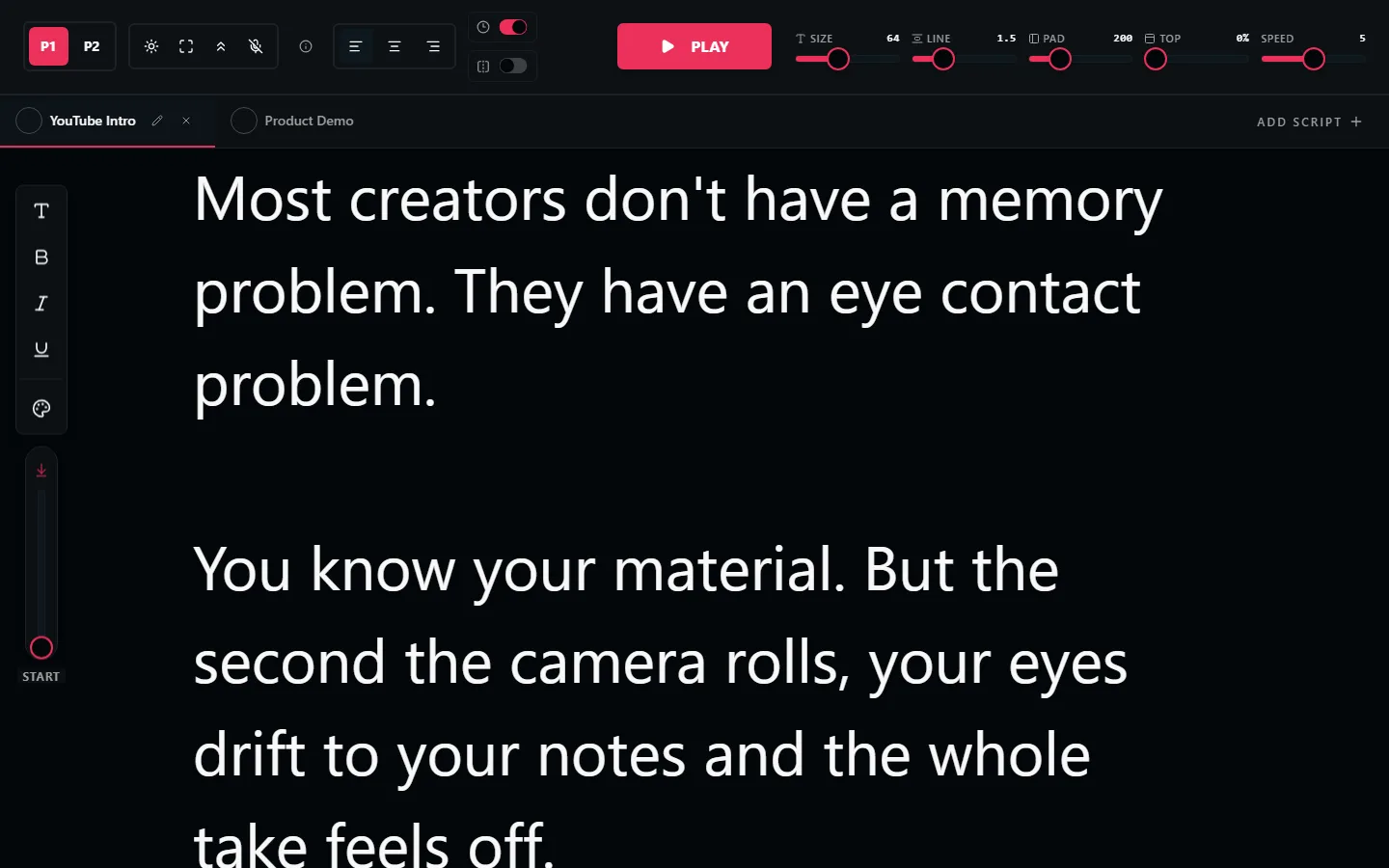
Why Not Download Teleprompter Software?
Teleprompter software for Windows usually means an installer from the Microsoft Store or a website, and on a work laptop that often means an IT request you cannot get approved. A browser teleprompter needs none of it: no .exe, no admin rights, no update prompts.
It is also the more flexible setup. The prompter is just a window, so you can size it into a strip under your webcam for calls, run it full screen on a second monitor for camera work, or drag it to a display mounted in a rig.
Recording with OBS, Teams, Zoom, or a DSLR capture app? The prompter runs beside all of them. Your PC records however it already records, and the script scrolls independently.
Desktop PCs actually have an advantage here. A tower with two monitors lets you put the prompter on the screen your webcam sits on and keep OBS, your slides, or your notes on the other one, which is awkward to do on a single laptop display.
Everything the Prompter Includes
Zero Install
Runs in Chrome, Edge, or Firefox. Works on personal machines and locked-down office PCs alike.
Dual Monitor Friendly
Run the prompter full screen on your webcam monitor and keep your recording software on the other.
Adjustable Scroll Speed
Slider control plus keyboard shortcuts, so you can nudge pace mid-take without reaching for the mouse.
Mirror Mode
Flip the text for beam-splitter glass and your PC can drive a full hardware prompter rig.
Multiple Scripts with Tabs
Keep every segment of a recording session loaded and switch tabs between takes.
Scripts Saved Locally
Scripts persist in your browser between sessions. Nothing uploads, no account exists to manage.
How to Set Up a Teleprompter on Windows
Open LilPrompter in your browser
Chrome, Edge, or Firefox. Paste your script and set the font size for your reading distance.
Position the window under your camera
For webcam work, make the browser window a narrow strip at the top of the screen, as close to the lens as possible.
Going dual monitor?
Put the prompter on the monitor with the webcam and your notes or recording software on the other. Your eyes stay near the lens.
Record with anything
OBS, Camera app, Zoom, Teams, or an external camera. The prompter is independent of whatever records.
Browser Teleprompter vs Installed Apps
| LilPrompter (browser) | Downloaded software | Microsoft Store app | |
|---|---|---|---|
| Price | Free, all features | Free or one-time fee | Free with ads or paid |
| Install | None, runs in the browser | .exe installer | MS Store download |
| Admin rights needed | No | Usually | Sometimes |
| Works on locked-down work PCs | Yes | Rarely | Depends on policy |
| Updates | Always current | Manual | Store-managed |
| Also works on Mac/phone/tablet | Yes | No | No |
Teleprompter for Windows FAQ
Is there a free teleprompter for Windows?
Yes. LilPrompter runs free in any browser on Windows 10 and 11 with every feature included: adjustable speed, mirror mode, large fonts, and multiple scripts. No installer and no account.
Do I need to install software?
No. It runs in Chrome, Edge, or Firefox. That also means it works on corporate machines where you cannot install .exe files or need admin approval.
Does it work on Windows 10 and Windows 11?
Yes. The teleprompter is browser-based, so it works on any Windows version that runs a modern browser.
Is there a teleprompter for PC?
Yes, and it does not have to be installed software. LilPrompter is a browser-based PC teleprompter, so it runs on any desktop or laptop PC with Chrome, Edge, or Firefox. There is no .exe to download and no licence tied to one machine.
How do I use a teleprompter on a desktop computer?
Open the prompter in a browser window and move it onto the monitor your webcam is mounted on, ideally as a narrow strip directly under the lens. If you have a second monitor, keep your recording software and notes over there so your eyes stay near the camera.
Can I use it with OBS?
Yes. Run the prompter in a browser window beside OBS, or on a second monitor near your camera. OBS records your scene while the script scrolls independently.
Which browsers are supported?
Chrome, Edge, Firefox, and other modern browsers. Scripts save locally in whichever browser you use.
Other Devices